.avif)
How to connect a Google Calendar MCP with Claude Code (4 steps)
.png)


Developers carry more scheduling context in their heads than Claude Code has access to. Which hours are blocked for the on-call handoff? Is anyone on the team out during the deployment window? Does the planned maintenance window overlap with a sprint ceremony?
Getting answers means tabbing out to Google Calendar, checking manually, and tabbing back.
To help your developers read and update calendar data without leaving the terminal, we'll show you how to connect Google Calendar with Merge Agent Handler's Google Calendar MCP server.
How it works
Merge Agent Handler connects Claude Code to Google Calendar through a single CLI setup. You install the Merge CLI, authenticate once, and register the connection with one command. Agent Handler manages OAuth token storage and refresh so you don't keep Google credentials in your local environment.
Here's the command that registers the connection:
Prerequisites
Before getting started, you'll need the following:
- A Merge Agent Handler account
- Claude Code installed (run
claude --versionto confirm) - pipx installed (run
pipx --versionto confirm, or install viapip install pipx) - A Google account with access to the calendars you want to connect
If you want to connect Merge Agent Handler's Google Calendar MCP with internal or customer-facing agentic products, you can follow the steps in our docs.
1. Install the Merge CLI
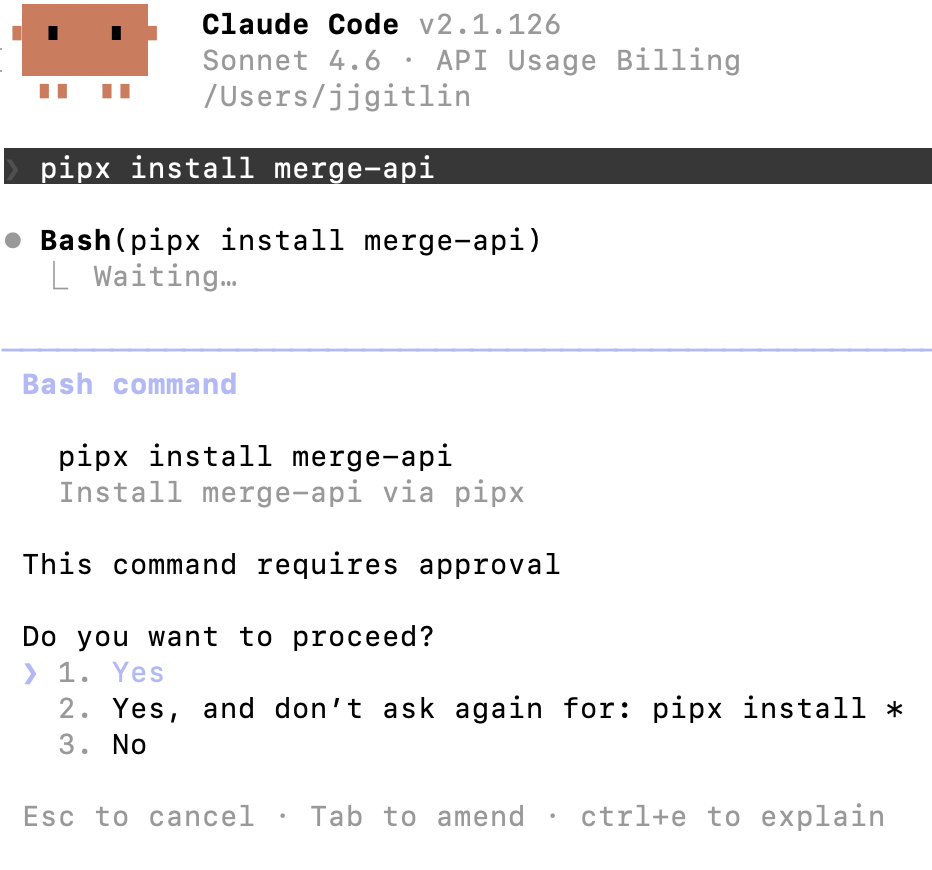
Install with pipx: pipx install merge-api
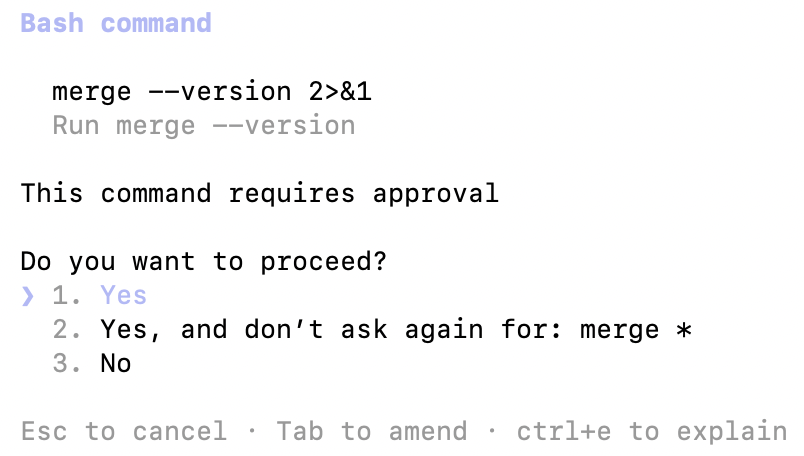
Verify your installation: merge --version
Related: How to use the Google Calendar MCP in Cursor
2. Configure the CLI and log in
Run merge login to connect the CLI to your Merge account: merge login
This starts an authenticated session so the CLI can make requests on your behalf.
3. Add Agent Handler to Claude Code
To add Agent Handler to Claude Code, run:
Or register manually with:
Verify the connection registered. Open Claude Code and run: /mcp
agent-handler should appear under Local MCPs with a connected status.

4. Authenticate Google Calendar
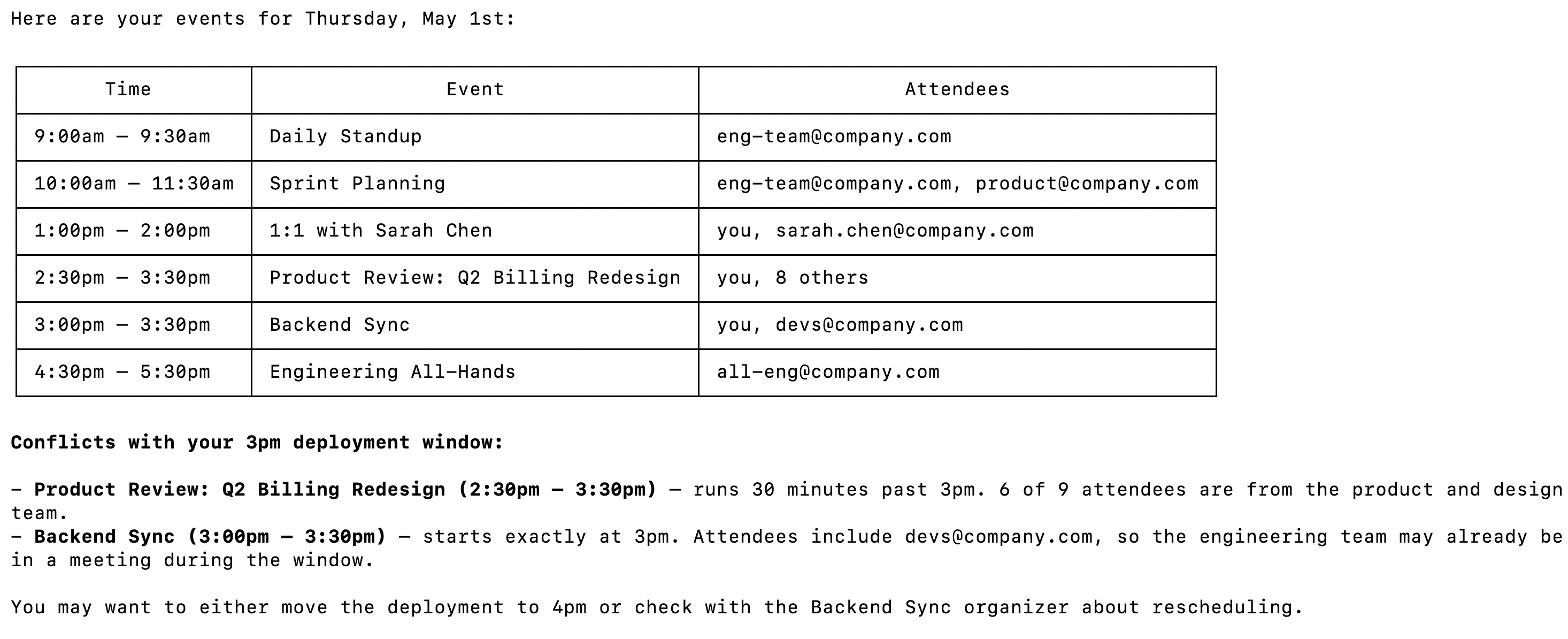
Open a Claude Code session and test it with: "List all events on my calendar for this Thursday and flag any that overlap with our 3pm deployment window."
The first time you use a Google Calendar tool, a Magic Link will appear to authenticate the connector.
You should then see an output that looks something like the following:
{{this-blog-only-cta}}
Google Calendar MCP FAQ
In case you have more questions on setting up and using the Google Calendar MCP in Claude Code, we've addressed several more commonly-asked questions below.
What can you do once the Google Calendar MCP is connected to Claude Code?
With Google Calendar connected, Claude Code can:
- List and query events: retrieve events from any calendar filtered by date range, attendee, or keyword, without switching to a browser tab
- Check availability windows: query free/busy data across calendars before scheduling a deployment, incident review, or sprint ceremony
- Read event details: pull attendees, descriptions, and video links for a specific meeting when you need that context mid-session
- Create and update events: schedule a new event or modify an existing one directly from the terminal (if write tools are enabled in your Tool Pack)
- List all calendars: browse the calendars accessible to the authenticated account, useful when you need to query a shared team or on-call calendar specifically
- Cross-reference schedule context while coding: ask Claude whether a release window is clear before triggering a deploy, without leaving the session
Why use Merge Agent Handler vs. a self-hosted Google Calendar MCP server?
You can build a self-hosted MCP server that wraps the Google Calendar API directly. For a single developer querying their own calendar, that's a viable path: store OAuth credentials locally, define tool schemas for the event queries you need, and connect it to Claude Code.
The setup breaks down at team scale. OAuth credentials stored locally carry access to everything that account can read, not just the specific calendars you intend to expose. There are no tool-level controls to restrict an agent to read-only queries or block it from writing events on calendars it shouldn't touch. And there's no record of what the agent queried or modified.
Merge Agent Handler adds a control layer that addresses these issues.
You choose exactly which tools each Tool Pack exposes, so a read-only scheduling agent never gets access to create_event or delete_event. Each developer gets a Registered User with isolated credentials, so one person's revoked access doesn't affect anyone else's setup. And every tool call is logged with the tool name, inputs, and response metadata, which matters when an agent modifies events on shares team calendars.
Why connect Google Calendar to Claude Code?
Calendar data has more operational relevance for developers than it gets credit for. Deployment windows, on-call handoffs, incident retrospectives, and sprint ceremonies all live in Google Calendar, and all of them affect decisions that happen in the terminal: when to push a release, whether a teammate is available to review, how long an incident window actually lasted, etc.
Without Calendar connected, Claude Code has no access to any of that. Developers tab out to check manually or work from memory.
Connecting Google Calendar via MCP closes that gap. Your developers can ask Claude to verify whether a deployment window is clear, pull the attendee list for an upcoming retro, find all events overlapping with a reported incident time window, and more. For teams that treat their calendar as a source of truth for engineering operations, that's a real reduction in context-switching during time-sensitive work.