.png)

How to connect Google Slides with Claude Code (4 steps)
.png)


Developers generate presentations constantly: sprint retrospectives, incident postmortems, architecture reviews, release summaries.
The content for all of them already exists in commits, tickets, metrics dashboards, and pull requests. But turning that content into slides means opening a browser, copying it over manually, and formatting it by hand. None of that process touches Claude Code.
To help your developers read and generate slide content without leaving the terminal, we'll show you how to connect Google Slides with Merge Agent Handler's Google Slides MCP server.
How it works
Merge Agent Handler routes requests from Claude Code to the Google Slides API. You install the Merge CLI, authenticate once, and register the connection with a single command. Agent Handler handles OAuth token management so you don't store Google credentials locally or wire them into your codebase.
Here's the command that registers the connection:
Prerequisites
Before getting started, you'll need the following:
- A Merge Agent Handler account
- Claude Code installed (run
claude --versionto confirm) - pipx installed (run
pipx --versionto confirm, or install viapip install pipx) - A Google account with access to the presentations you want to connect
If you want to connect Merge Agent Handler's Google Slides MCP with internal or customer-facing agentic products, you can follow the steps in our docs.
1. Install the Merge CLI
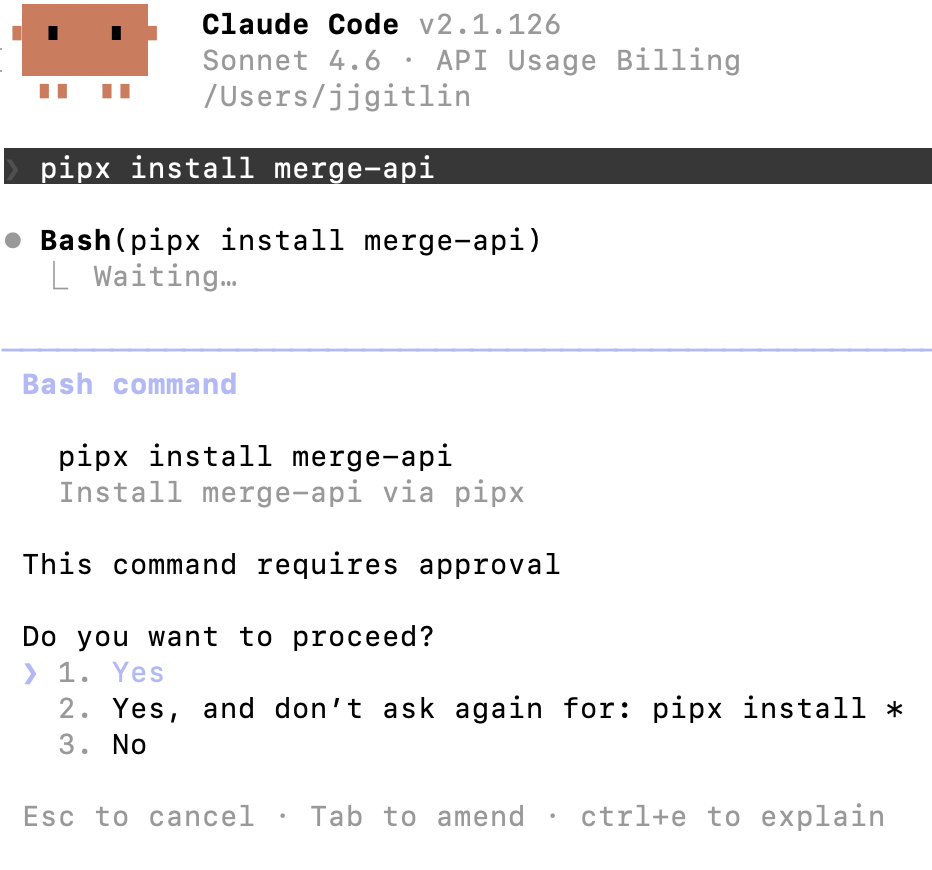
Install with pipx: pipx install merge-api
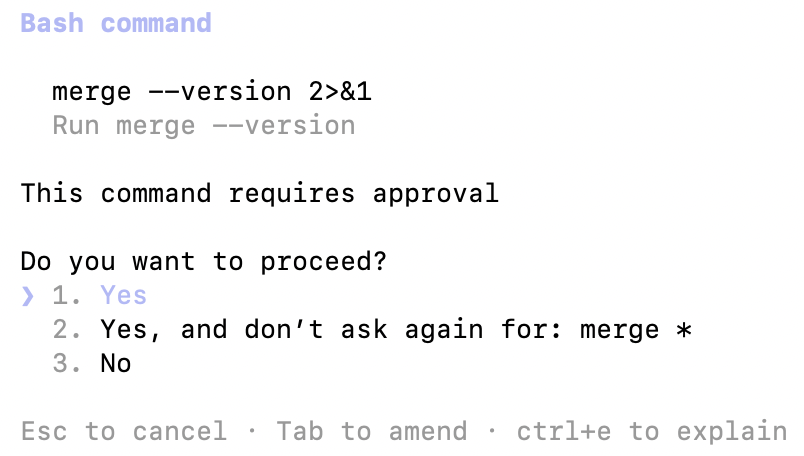
Verify your installation: merge --version
Related: How to use a Google Slides MCP in Cursor
2. Configure the CLI and log in
Log in to connect the CLI to your Merge Agent Handler account: merge login
The CLI is now authenticated and ready to make authorized requests on your behalf.
3. Add Agent Handler to Claude Code
Run the following to register the Agent Handler MCP server with Claude Code:
Or, if you prefer to register manually:
Verify the connection registered. Open Claude Code and run: /mcp
agent-handler should appear under Local MCPs with a connected status.

Related: The steps for integrating a Google Slides MCP with Codex
4. Authenticate Google Slides
Open a Claude Code session and run a test query like: "Find my Q2 Engineering Retrospective deck and summarize the key points from each slide."
The first time you invoke a Google Slides tool, a Magic Link will appear to complete connector authentication.
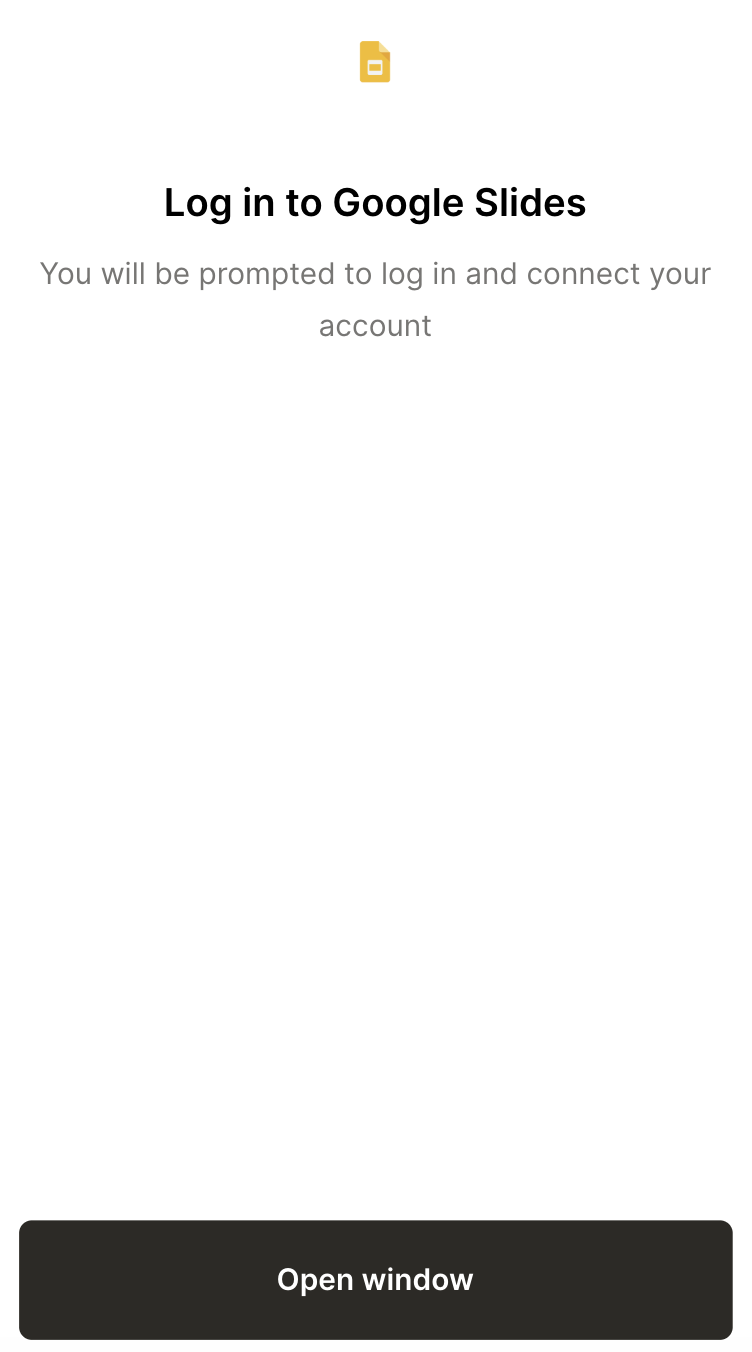
Once authenticated, you should see an output like the following:

You should see an output that looks something like the following:
{{this-blog-only-cta}}
Google Slides MCP FAQ
In case you have more questions on setting up and using the Google Slides MCP in Claude Code, we've addressed several more commonly-asked questions below.
What can you do once the Google Slides MCP is connected to Claude Code?
With Google Slides connected, Claude Code can:
- Read slide content: retrieve the text and structure of any presentation without opening a browser or copy-pasting content into context
- List presentations: browse available decks in your Google Drive to find the right file before querying or updating it
- Create presentations: generate a new deck from scratch based on structured input, such as a sprint summary, a list of incidents, or a set of architecture decisions
- Add and update slides: append new slides to an existing deck or modify the content of specific slides when new information is available
- Read speaker notes: surface the notes attached to each slide, useful when an agent needs the full context behind a slide's content
- Cross-reference presentation content: pull slide data alongside other connected tools, such as combining a Jira sprint board with an existing retro deck to generate a draft of what happened this week
Why use Merge Agent Handler vs. a self-hosted Google Slides MCP server?
You can build a self-hosted MCP server that calls the Google Slides API directly. For a solo developer generating decks from their own Google account, that's a straightforward setup: configure OAuth credentials, write tool schemas for the operations you need, and wire it to Claude Code.
The setup gets complicated when more than one person needs access, or when your presentations contain sensitive content.
Google OAuth credentials stored locally carry access to everything the account can reach across Drive and Slides, not just the specific decks you intend to expose. There are no tool-level controls to limit an agent to read-only access or prevent it from creating or modifying presentations outside the intended scope.
At team scale, credential management becomes another problem. Each developer with their own local OAuth setup means separate tokens to rotate, no central visibility into what agents are reading or writing, and no clean way to revoke access when someone leaves.
Merge Agent Handler adds a control layer on top.
You define exactly which tools each Tool Pack exposes, so a read-only summarization agent never gets access to create_presentation or add_slide. Each Registered User has isolated credentials, so revoking one developer's access doesn't affect anyone else. Every tool call is logged with the tool name, inputs, and response metadata.
Why connect Google Slides to Claude Code?
Most engineering teams produce the same set of recurring presentations: sprint retros, release notes, incident postmortems, architecture decision records. The content for all of them already exists in tickets, commits, dashboards, and logs. The work is in pulling that content together and formatting it, which is manual, slow, and disconnected from the terminal.
Connecting Google Slides via MCP closes that gap.
Developers can ask Claude Code to read an existing deck, identify gaps, and append new slides based on data from other connected tools. An agent can pull this week's closed Jira tickets, match them against an existing retro template, and generate a draft deck without a single browser tab. For engineering teams that treat documentation and internal communication as part of the development workflow, that's a direct reduction in the time between "work is done" and "slides are ready."