

Table of contents


A guide to integrating with Paycor’s API


.jpg)
Michelle Krameisen
Paycor offers a suite of human capital management (HCM) solutions to help HR and recruiting teams manage payroll, expenses, benefits, job applications, and more.
Given all the processes Paycor supports, integrating it with other applications—or your product—can unlock a number of powerful workflows.
We’ll break down several, but first, let’s review how the Paycor API works.
Overview on Paycor’s API
The Paycor API lets you access and interact with a wide range of employee and candidate data.
These interactions can be internal, meaning between your Paycor instance and another application your business uses; or customer-facing, which is between your product and your customers’ instances of Paycor.
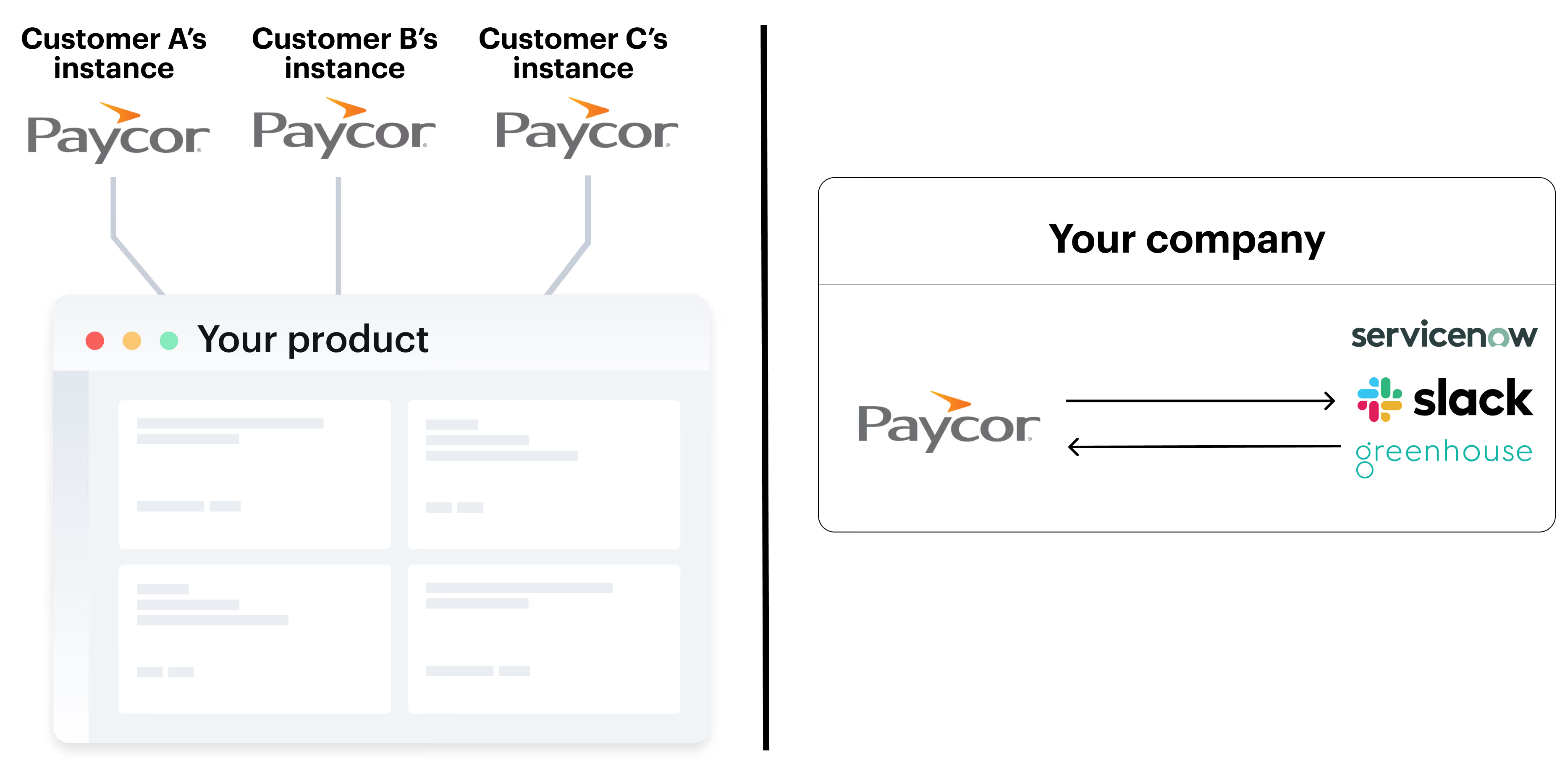
Here’s a look at some of the basics of Paycor’s API:
Endpoints
- <code class="blog_inline-code">GET v2/tenants/{tenantId}/employees</code>: This lets you fetch employee records in Paycor, such as employee numbers, and first and last names
- <code class="blog_inline-code">GET /v2/employees/{employeeId}/DirectDeposits/{directDepositId}</code>: You can use this to fetch employees’ account types, account and routing numbers, and direct deposit amounts
- <code class="blog_inline-code">GET/v2/employees/{employeeId}/paystubDocumentData</code>: Leverage this endpoint to retrieve metadata about a given employee’s pay stub document. You’ll also be able to access the pay stub document itself via the <code class="blog_inline-code">payStubDocumentURL</code> field
Note: To access certain endpoints, you may need to have an account with the associated product. For example, to access Paycor’s Employee Scheduling APIs, you’ll need to have a subscription with Paycor’s scheduling product.
Rate limits
Paycor uses a rate limit of 1,000 calls per minute across all of their APIs. This is significantly simpler than how most other HCM API providers approach rate limits (they tend to vary their rate limits by specific endpoints, subscription plans, among other variables).
Error codes
Paycor uses a wide range of API error codes across their endpoints. Here are just a few you’ll likely encounter:
- 200 Successful: the API request was processed correctly
- 400 Bad Request: the client made a mistake in their request. For example, they may not have included the right parameters when calling a specific Paycor endpoint
- 404 Not Found: the requested resource doesn’t appear to exist in Paycor’s server
- 429 Too Many Requests: you exceeded Paycor’s rate limit (1,000 calls per minute) in the current rate limit window
- 500 Internal Server Error: Paycor’s server is experiencing an issue that prevented it from fulfilling the request
Pagination
Paycor uses the <code class="blog_inline-code">continuationToken</code> query parameter to paginate through large data sets.
This token essentially functions as a cursor: when you make requests to one of Paycor’s API endpoints, the continuation token returned in the response can be used in follow up requests to fetch the next “page” of records.
Related: How Merge’s customer-facing Paycor integration works
How to authenticate with Paycor’s API
Paycor requires you to either use an access token or an API key to authenticate any requests. We’ll walk you through the former.
Step 1: Request admin access to the Developer Portal Account
Visit Paycor’s Join Developer Portal page.
Assuming you’re a Paycor client, you can select “Get Started.”
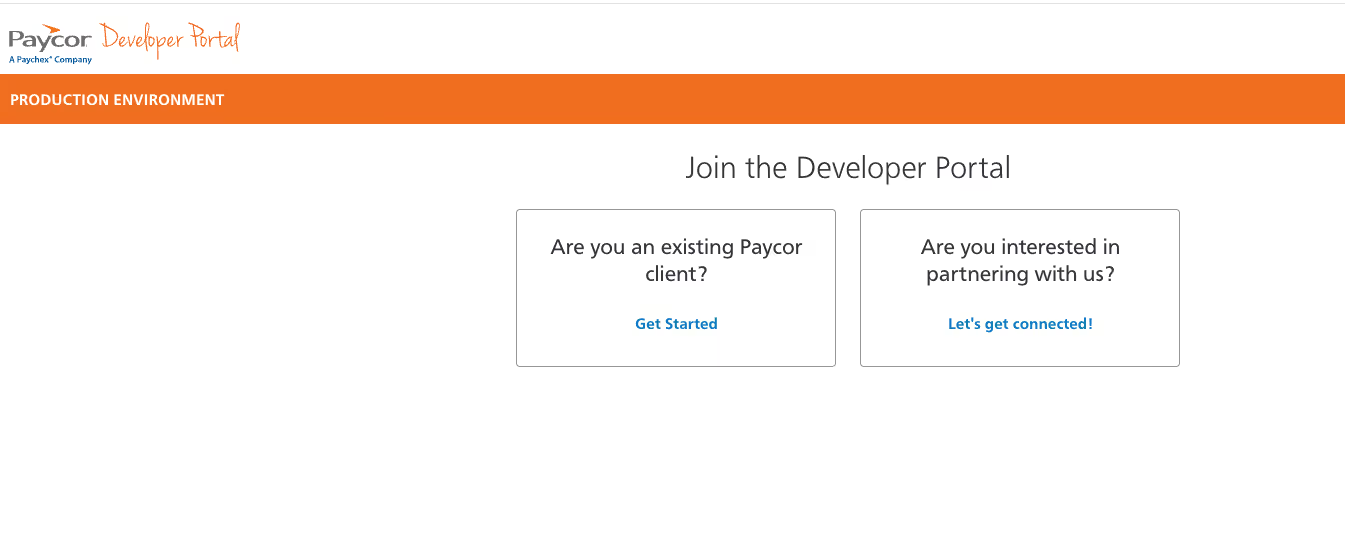
Enter your username and password and then sign in. Then select that you’d like to be an “Admin of the Developer Portal Account,” and click Request Access.
Step 2: Build an application
Once you’re approved, you can sign back into Paycor’s Developer Portal. You should see an “Applications” button. Go ahead and select it.
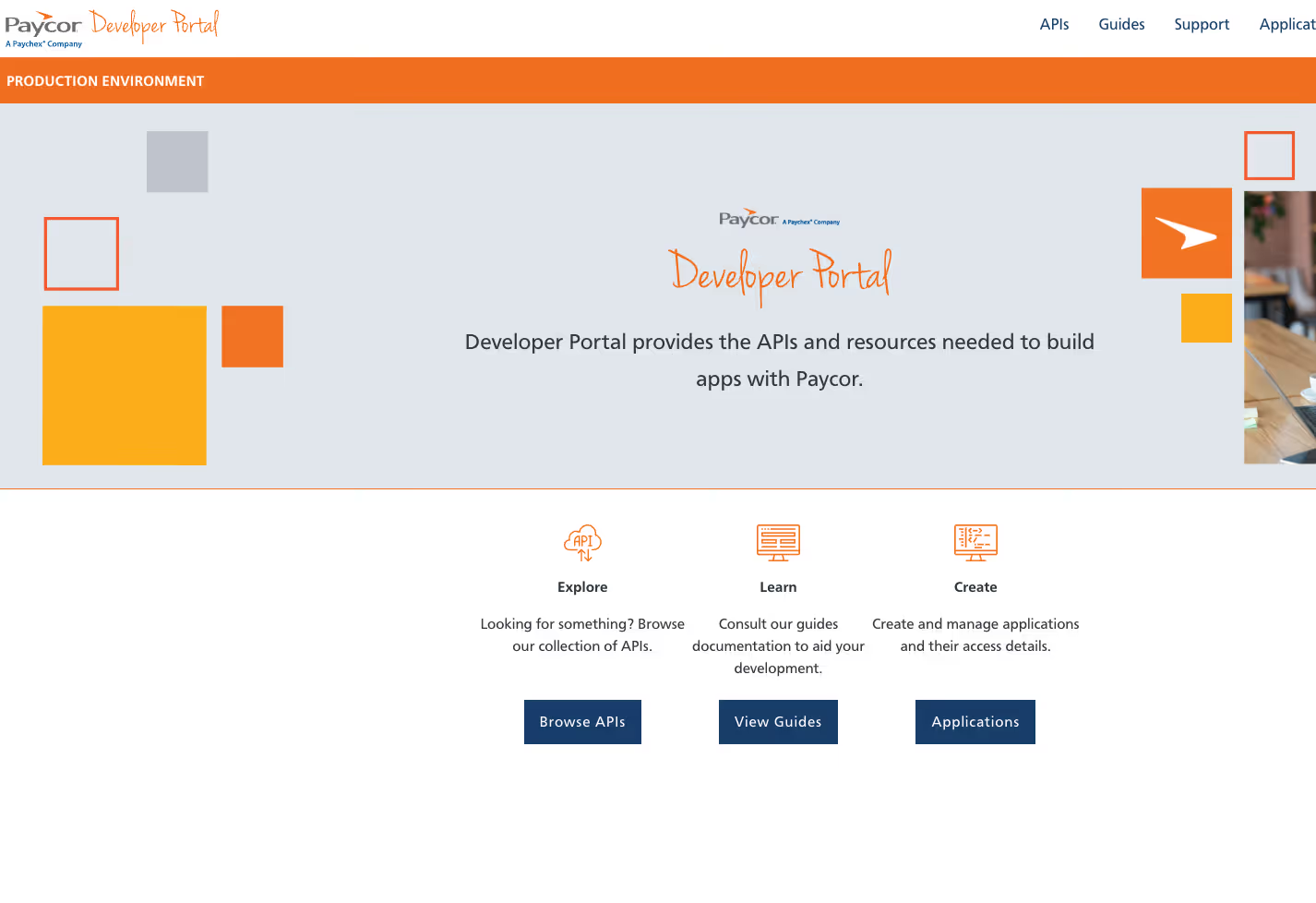
Click "+ Application" to create a new application, select an Application Type (either a Standard Application or a Reporting Application), and give your application a name.

Then click “Create Application.”
You can then copy and save the Application OAuth Client ID and Application OAuth Client Secret. Once you have, click “Got it.”

Finally, you’ll then be able to configure your data access. After you’ve done so, select “Save.”
Related: How to use Paylocity's API
Step 3: Activate your application
Enter the Application OAuth Client ID, which you’ll find by selecting “Application Detail” under the “Security Connections” tab.
Enter the Application Scope, which is under “Application Detail” in the “General” tab.
Finally, click Initiate.
Step 4: Review and approve data access to the Client ID
Review the access being requested based on the application scope. Then click “Next” on the verify screen.
Select the Client to integrate with the application; then agree to the terms of use, and, finally, click “Integrate.”
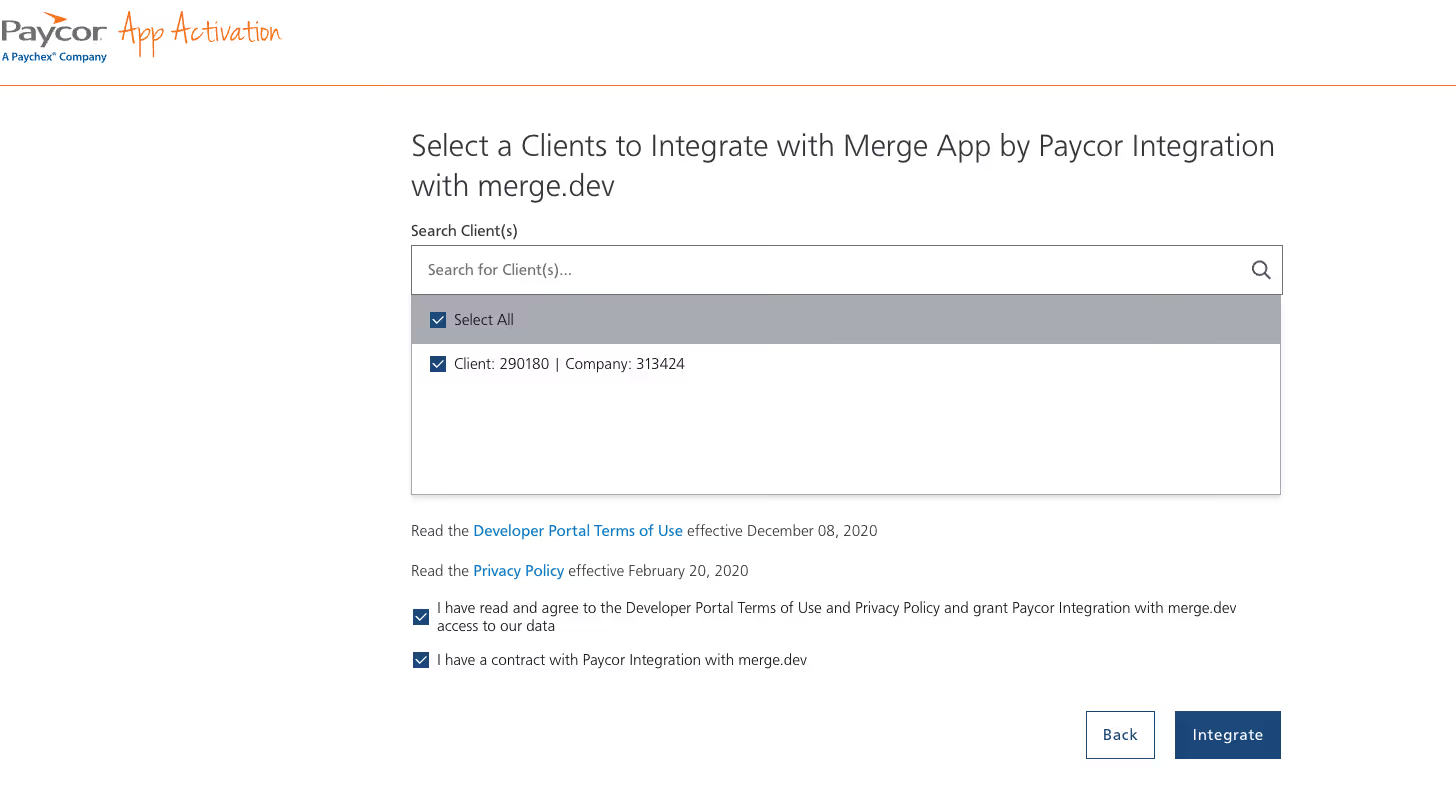
Step 5: Access and refresh your token
Enter the Application OAuth Client ID, which is located on the Application Detail Screen, under the Security Connections tab.
You can now also enter the Application OAuth Client Secret, which you should have saved when you created an application from step 2.

Click "Submit," and then copy the access and refresh tokens.
Bonus: Acquiring a new access token
Since the access token will be valid for just 30 minutes, you’ll need to get a new one on a consistent cadence.
To do so, you can configure a POST call and input your Subscription Key as a parameter or as part of the URL.
For a sandbox account: <code class="blog_inline-code">https://apis-sandbox.paycor.com/sts/v1/common/token?subscription-key=<Application APIm Subscription Key></code>
For a production account:<code class="blog_inline-code">https://apis.paycor.com/sts/v1/common/token?subscription-key=<Application APIm Subscription Key></code>
Enter the keys and values into the body of the POST call, and then you can retrieve a new access token.

Examples of integrating with Paycor’s API
You can integrate Paycor with your internal applications as well as with your product. We’ll start with a few examples of the former scenario.
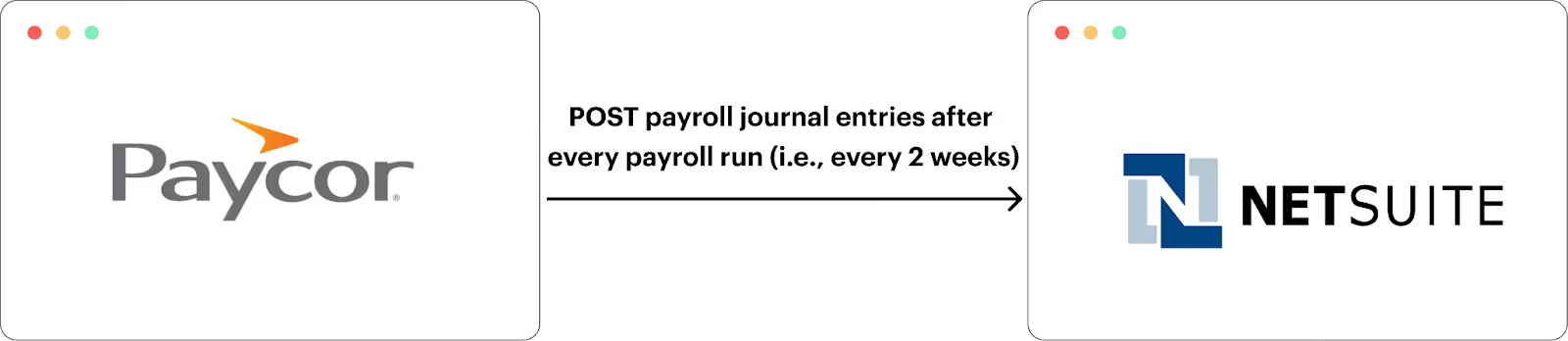
Add payroll journal entries to your ERP system to reconcile payments
To ensure your finance team can reconcile payroll expenses on time and with minimal effort, you can connect Paycor with your ERP system (e.g., NetSuite) and build the following flow: On a predefined cadence (e.g., once per week), employees’ payroll journal entries get POSTed to your ERP system.
Related: The top examples of API integrations
Upload files to the appropriate employee folders automatically
Your HR team will likely upload a variety of important employee documents to Paycor, such as fully executed offer letters or I-9s.
To ensure these documents are kept secure and easy to find over time, you can integrate Paycor with your file storage solution (e.g., Box) and build the following automation: Once a certain type of document is uploaded in Paycor, it’s automatically added to the associated employee folder in your file storage solution.

Power an AI agent that can analyze employee data
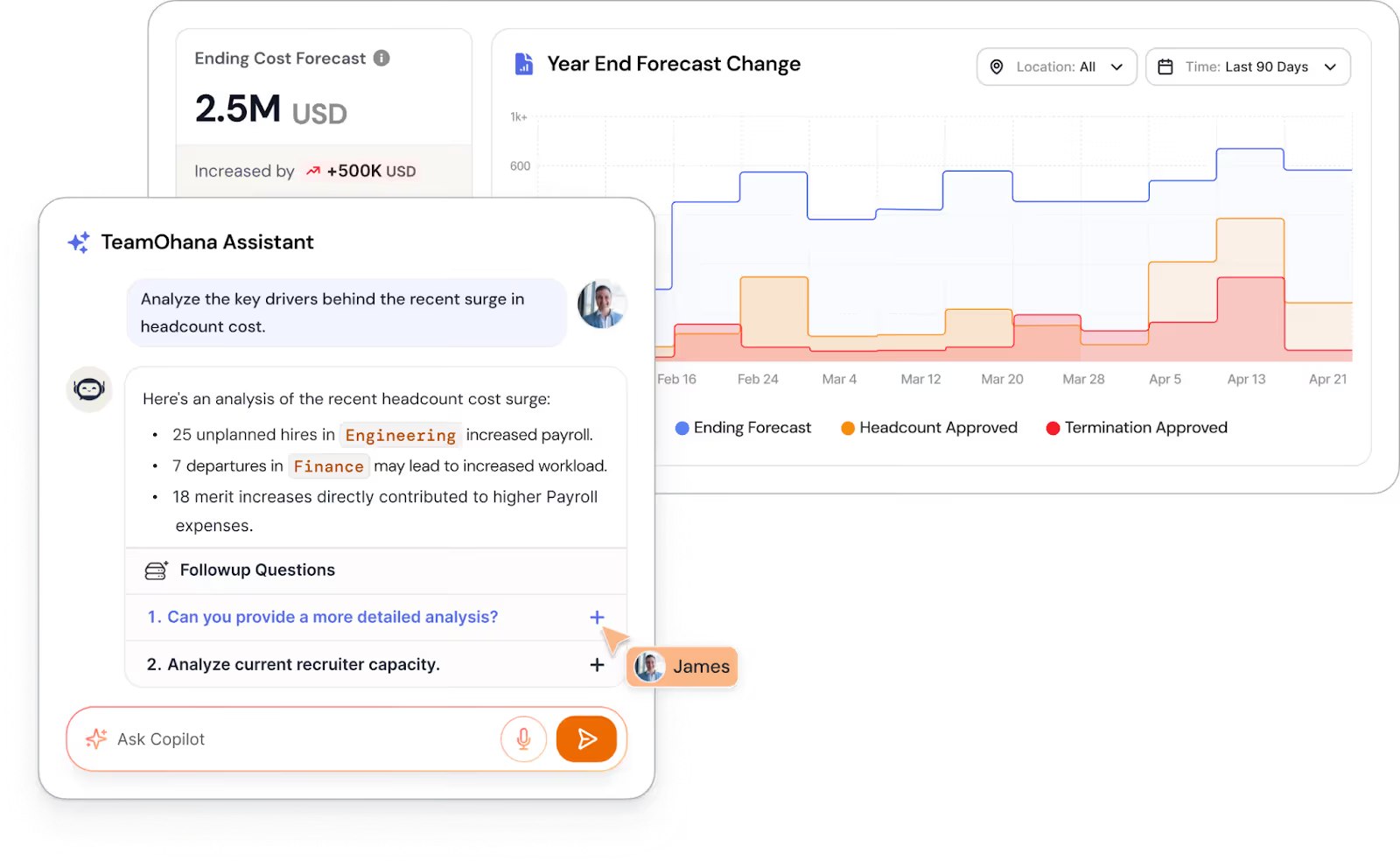
Say you offer an AI agent that can help HR and finance teams forecast and analyze headcount, employee costs, and more.
To power this AI agent, you can integrate it with your customers’ instances of Paycor and sync certain types of data every day, such as annual salaries, the costs associated with benefit administration, annual bonuses, and incoming and departing employees.
Proactively provision new hires with the right applications and devices
Say you offer an IT asset management solution that can help customers provide their employees with the right set of applications and the proper access levels for their applications.
To offer this at scale, you can integrate with customers’ instances of Paycor and sync data like first and last names, departments, job titles, addresses, and more.
This lets your product support a few workflows.
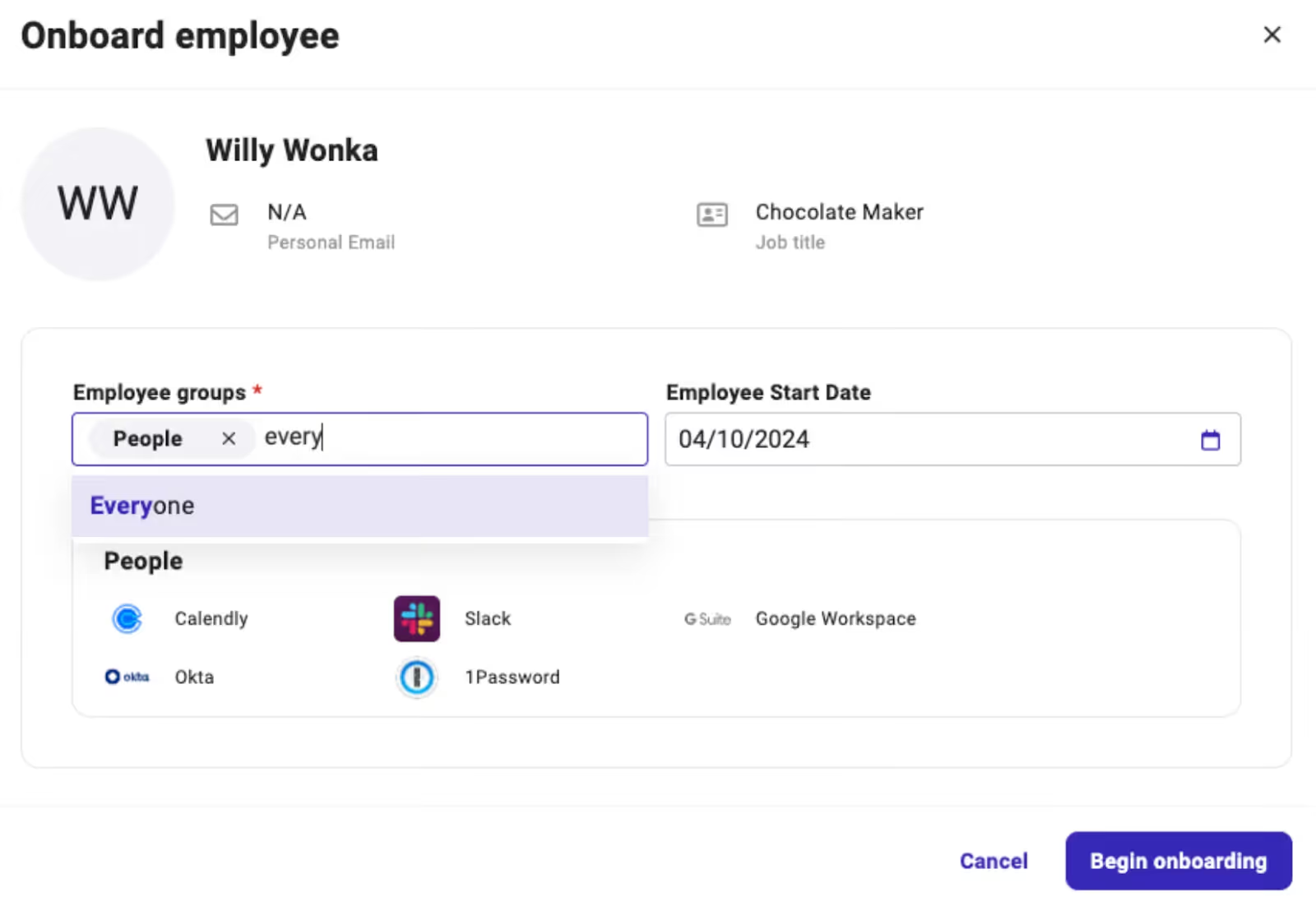
For example, when an incoming employee is added to Paycor, your product can notify the admin user and prompt them to select the group the incoming employee belongs to. This would trigger workflows in your product that enable the incoming employee to receive the right set of equipment by their first day and get access to the proper set of apps.
In addition when an employee is marked as terminated in Paycor, an admin in your product can get notified and, with the click of a button, kickstart certain offboarding workflows—such as retrieving their equipment and removing their access to certain apps.
Best practices for integrating with Paycor’s API
Here are just a few best practices to follow:
- Leverage a sandbox account. Paycor offers developer sandboxes you can use for testing. Make sure to configure the sandbox to mirror production settings as closely as possible, including roles, permissions, and redirect URIs
- Match redirect URIs. Even small differences in these URIs—such as mismatched protocols, casing, or trailing slashes—will cause authentication errors, typically resulting in <code class="blog_inline-code">invalid_grant</code> messages
- Use least-privilege scopes. Only request the scopes you need during consent, ideally during the OAuth step. Also, To make approvals and audits easier in the future, document why each scope was requested and how it's used in the integration
- Implement retry logic with exponential backoff. More specifically, implement it for whenever you receive 429 Too Many Requests responses. That way, your integration can automatically pause and retry after an increasing delay, rather than continuously hammering the API and risking extended throttling
Related: Best practices for using HiBob's API
Integrate 70+ HRISs—including Paycor—with your product via Merge
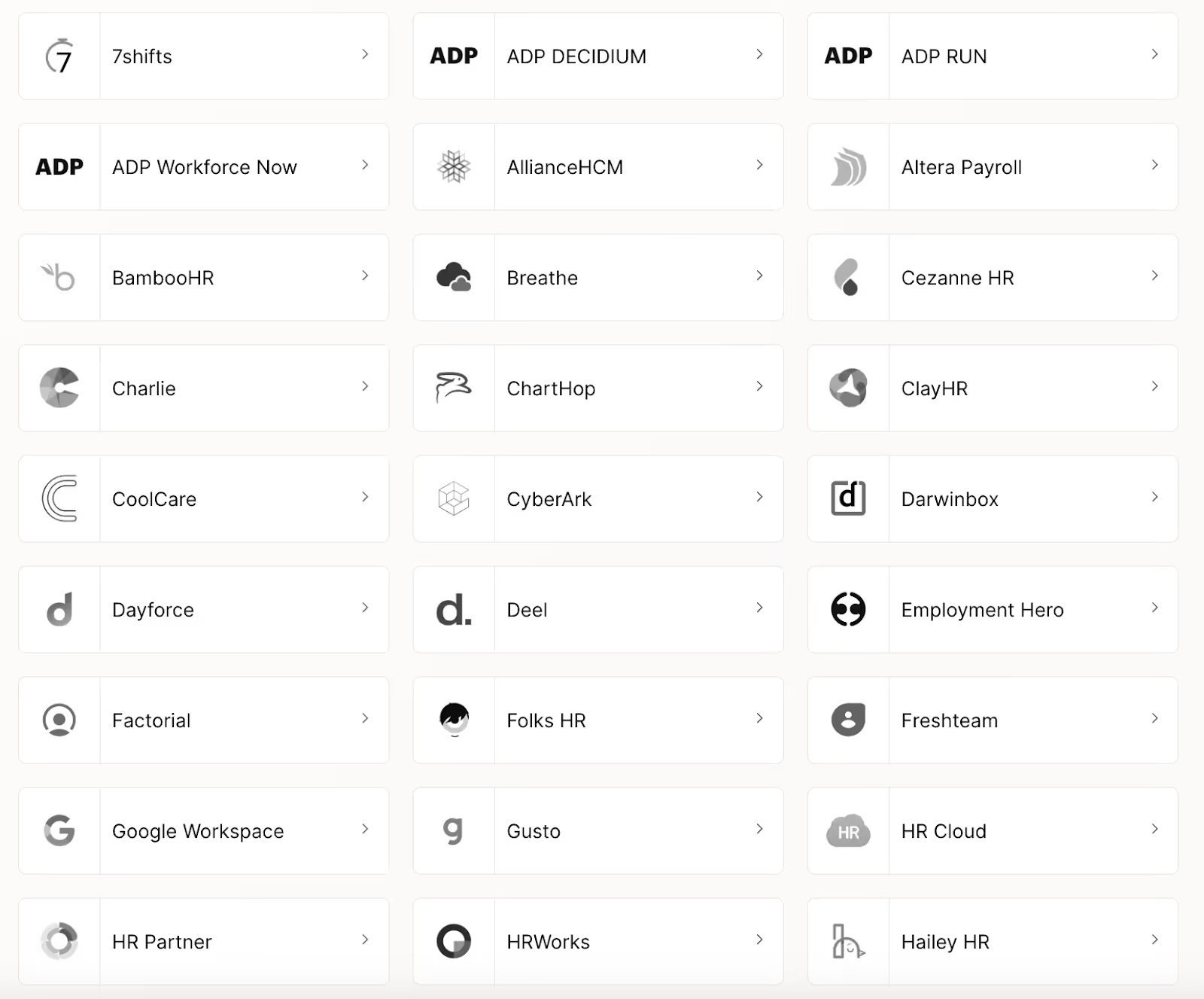
Merge, the leading unified API solution, lets you connect Paycor—along with 70+ other HRISs—with your product through its Unified HRIS API.
Merge also provides:
- Comprehensive Common Models (normalized data models) and advanced features to sync custom data, such as Field Mapping and Authenticated Passthrough Request
- Integration observability features—from fully-searchable logs to automated issue detection functionality—to help your customer-facing teams manage integration issues on their own
- Best-in-class support to help you not only resolve issues quickly but also get the guidance needed to take your integrations to market successfully
Learn how Merge can help you add and support customer-facing HRIS integrations at scale by scheduling a demo with one of our integration experts.

Michelle Krameisen




But Merge isn’t just a Unified
API product. Merge is an integration platform to also manage customer integrations. gradient text
But Merge isn’t just a Unified
API product. Merge is an integration platform to also manage customer integrations. gradient text
But Merge isn’t just a Unified
API product. Merge is an integration platform to also manage customer integrations. gradient text
But Merge isn’t just a Unified
API product. Merge is an integration platform to also manage customer integrations. gradient text